You are here: 2D Windows and Controls > Controls > Clock
Clock
A Clock control displays the current date/time in the control.
Create a Clock
Open the destination window to add the Control.
From the Toolbox, select the Clock icon, move the pointer into the window and drag out the initial position and size for the control.
Access Clock properties
If the Property Editor is not displayed, click on Ribbon > Home > Property Editor
Click on the Control. The Properties for the control will appear in the Property Editor panel and allow changes to be made.
Clock Properties
Name: Name of the control
Alias: Alias of the control
General
Date Time Format: Select the format for the Date/Time to display
Either select a character designator from the info icon hover box as below (?) or enter a free form format for the date/time. e.g. Enter 'yyyy-mm-dd' to produce the ISO 8601 date format.
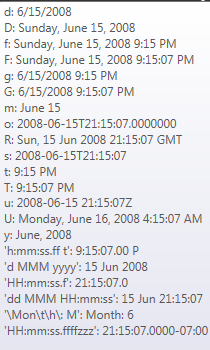
Template: Select a template to use for this control
Layout: Defines the layout parameters for the control
X: X location in the window to place the control
Y: Y location in the window to place the control
Width: Width of the control
Height: Height of the control
Anchor: Which edge of the window the control is anchored to when the window is resized
Visual: The Visual category allows the user to configure the look and feel of the control.
Visible: Defaults to visible but untick if you wish this Control to be invisible
Family: Select the Font family for the Clock text
Size: Size for the Clock text
Style: Select from Regular, Bold, Italic, Underline or Strikeout
Alignment: Select from Left, Right or Center
Color: Select the color of the text from the list of available colors defined in the project
Binding: The following properties of the Clock Control may be bound to a tag;
Font Color:
Visible: